
Frequently Asked Questions
Creating a meeting with an agenda
Open https://qld.lwtstrata.ai/ on your desktop or laptop and login with the BLUE button.
Select Regular Meeting from the left hand side.
Enter your Meeting Title, Objective, Date, Start Time and End Time (choose OK)
Scroll down and enter Agenda Topics
Click Save
Go to Manage Meetings page and check that the meeting date is correct and that the meeting appears.
Note: if you don't have time to add an Agenda you can create a Quick Meeting and the Ai will create the agenda for you after the meeting automatically. You can create a Quick meeting with either the Desktop or the Mobile phone application.
Quickly creating a meeting with no agenda
Someone has just called a meeting and you don’t have time to create an agenda. No problem. Let LWT do it for you after the meeting. The easiest way… LWT’s Meeting Recorder!
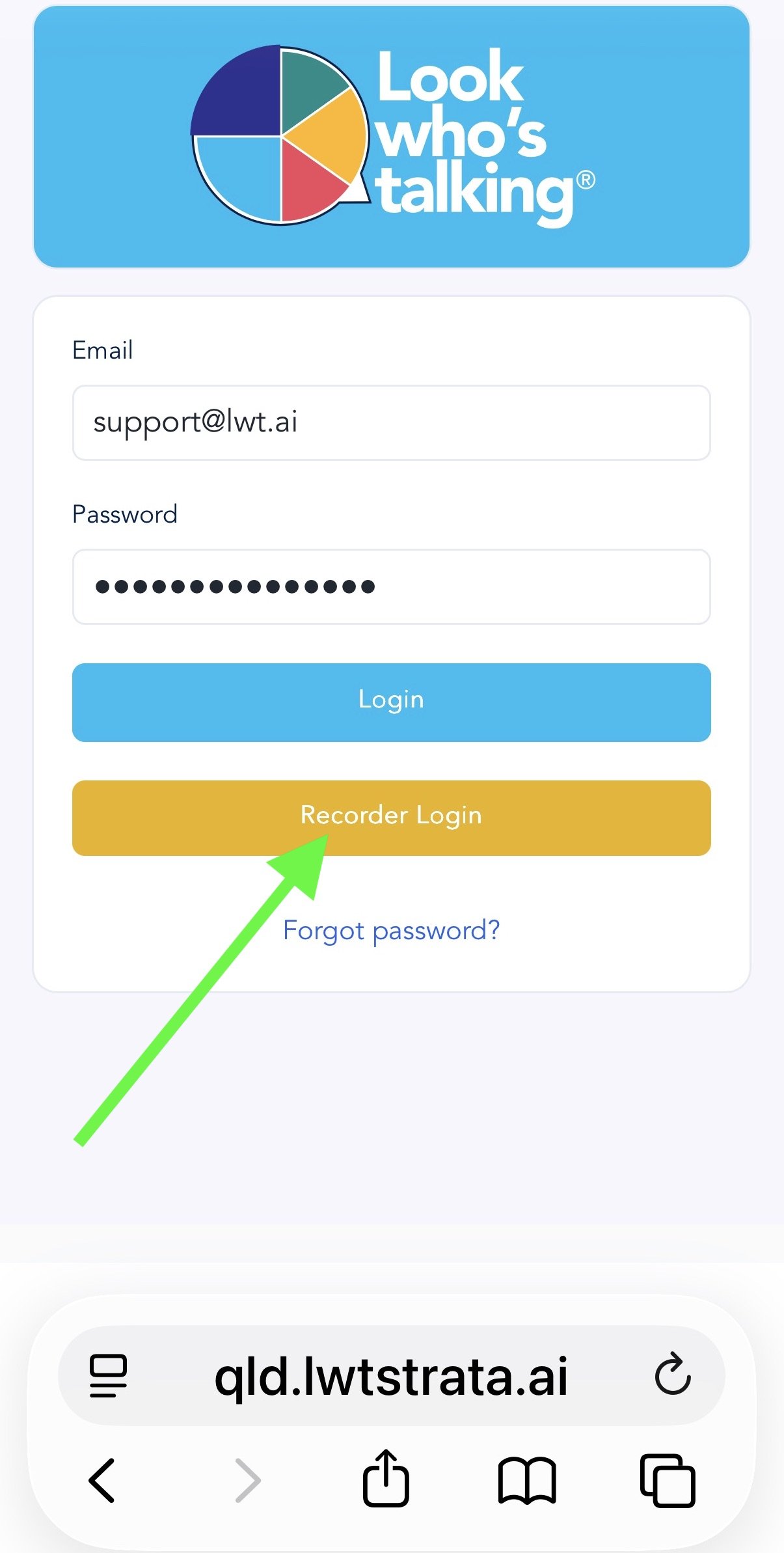
Open https://qld.lwtstrata.ai/ on your mobile phone and login with the YELLOW button.
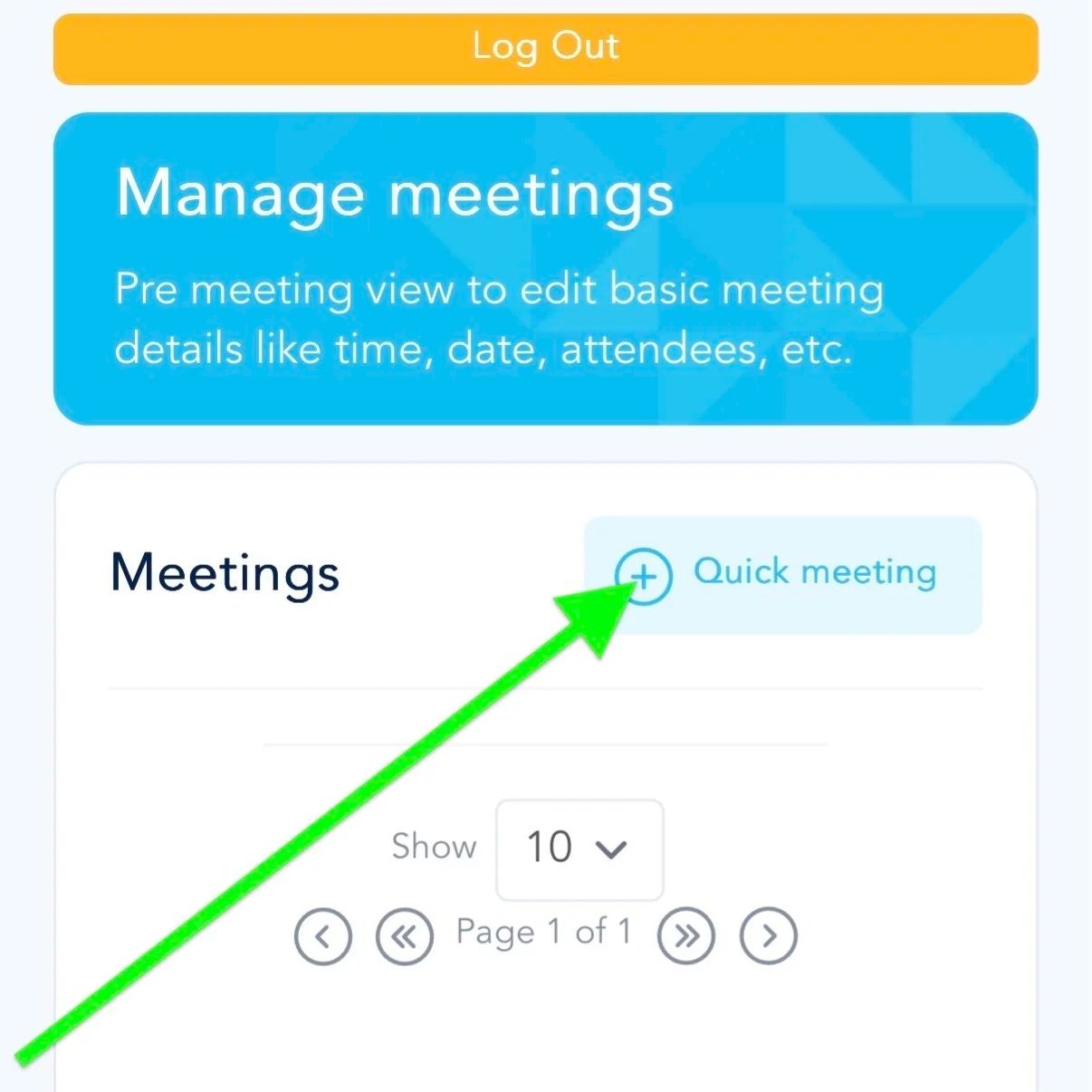
Click “+ Quick Meeting”.
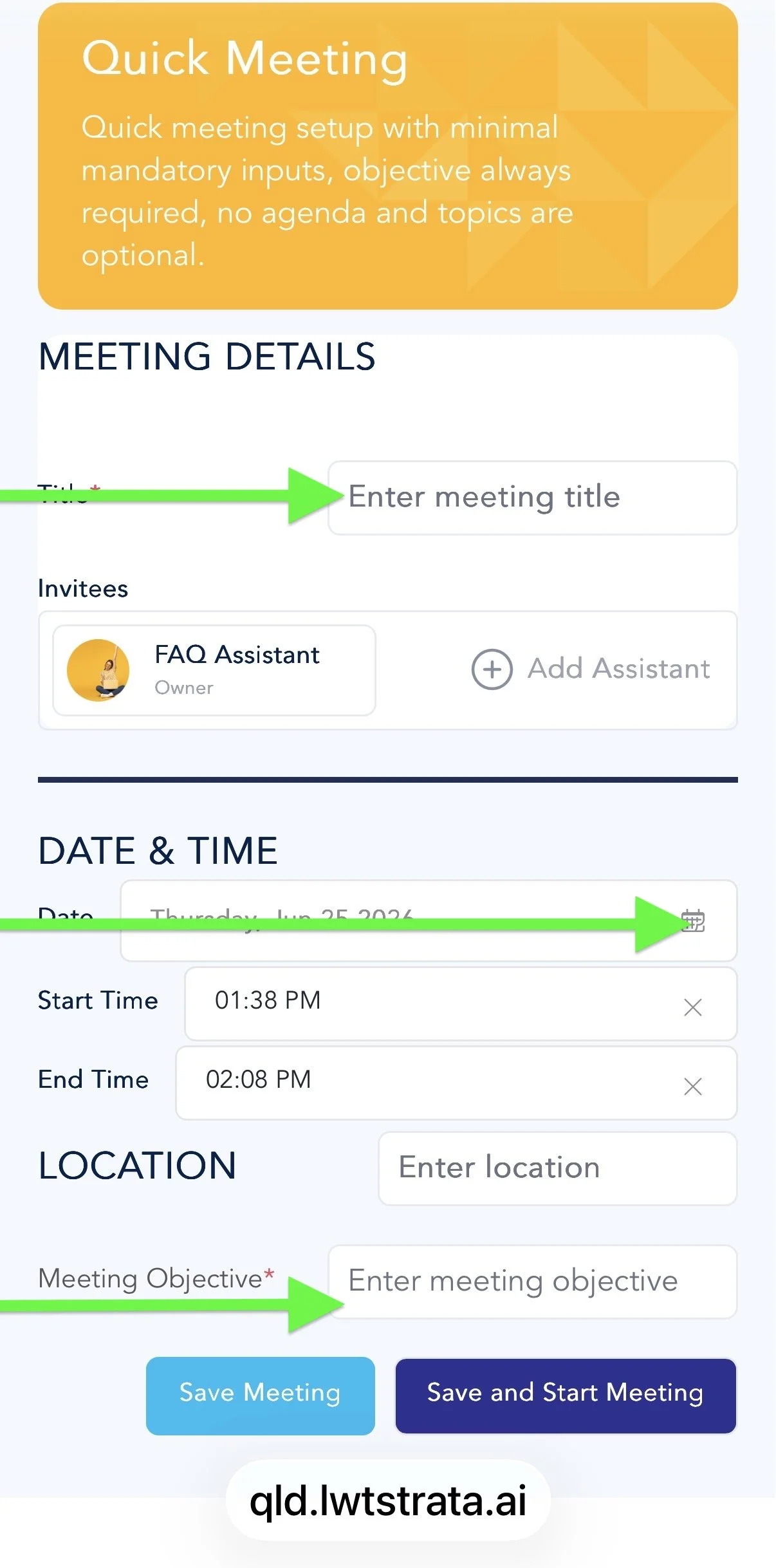
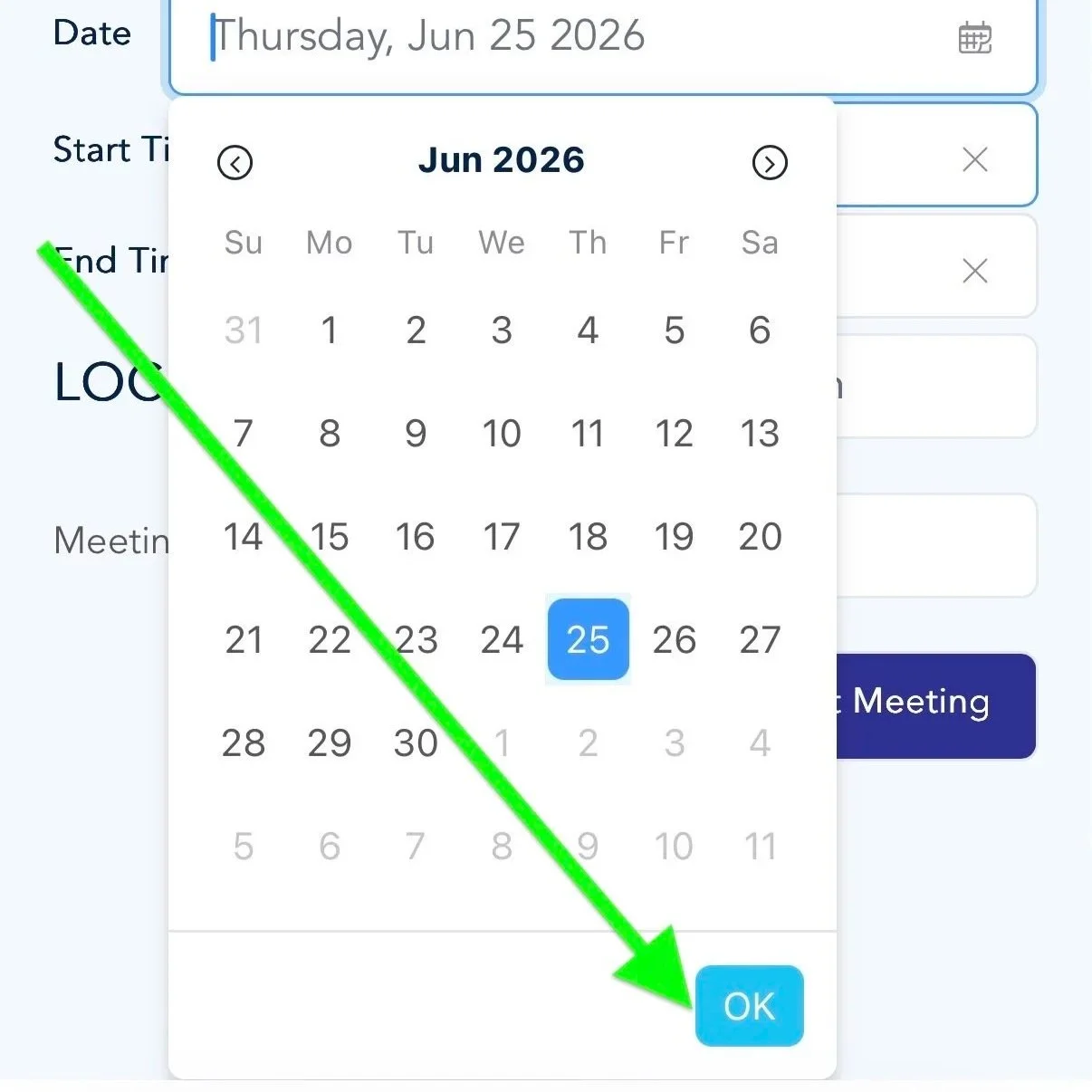
Enter your Meeting Title, Objective, Date, Start Time and End Time (choose OK).
Click Save for a meeting that will start later or Save and Start for a meeting that is about to start.
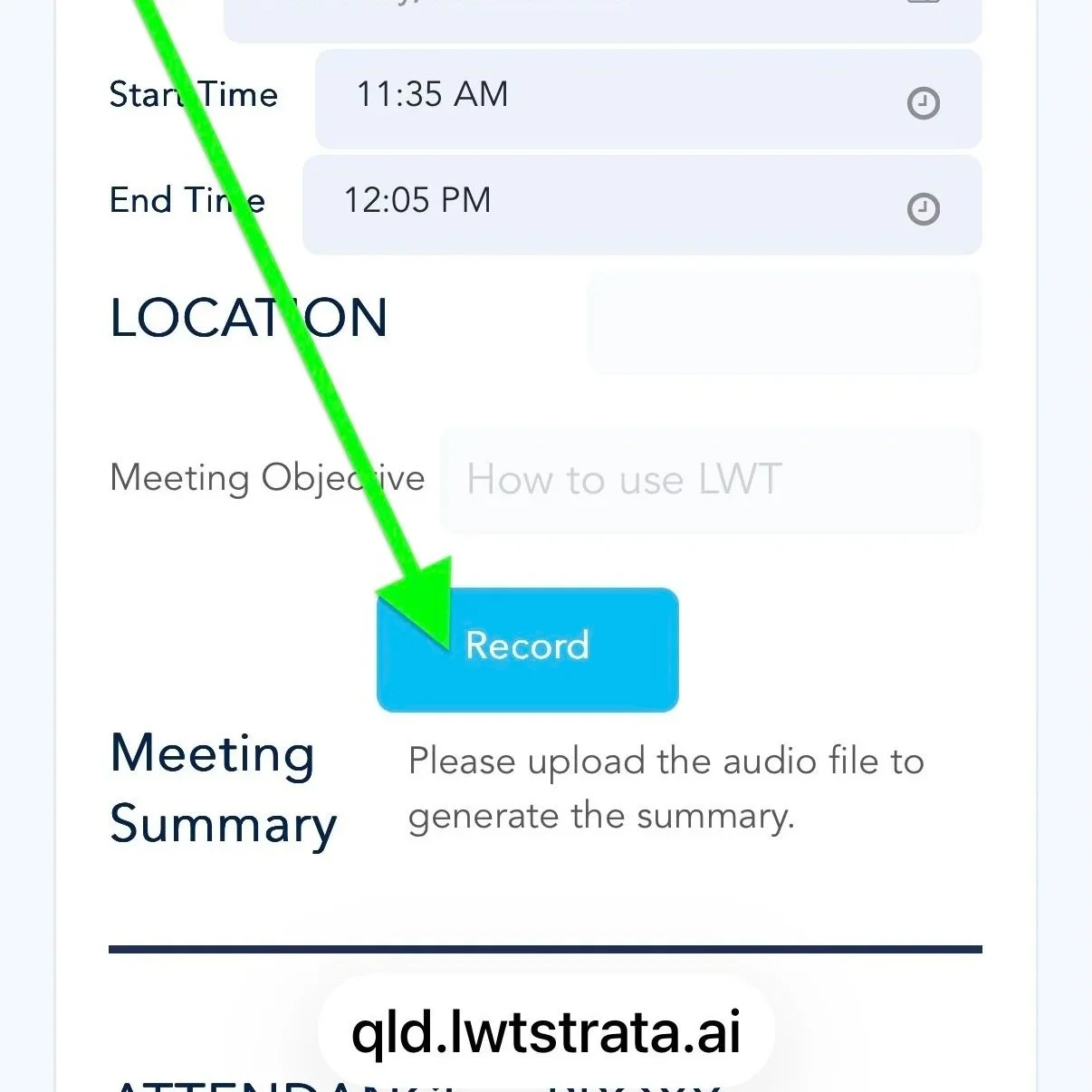
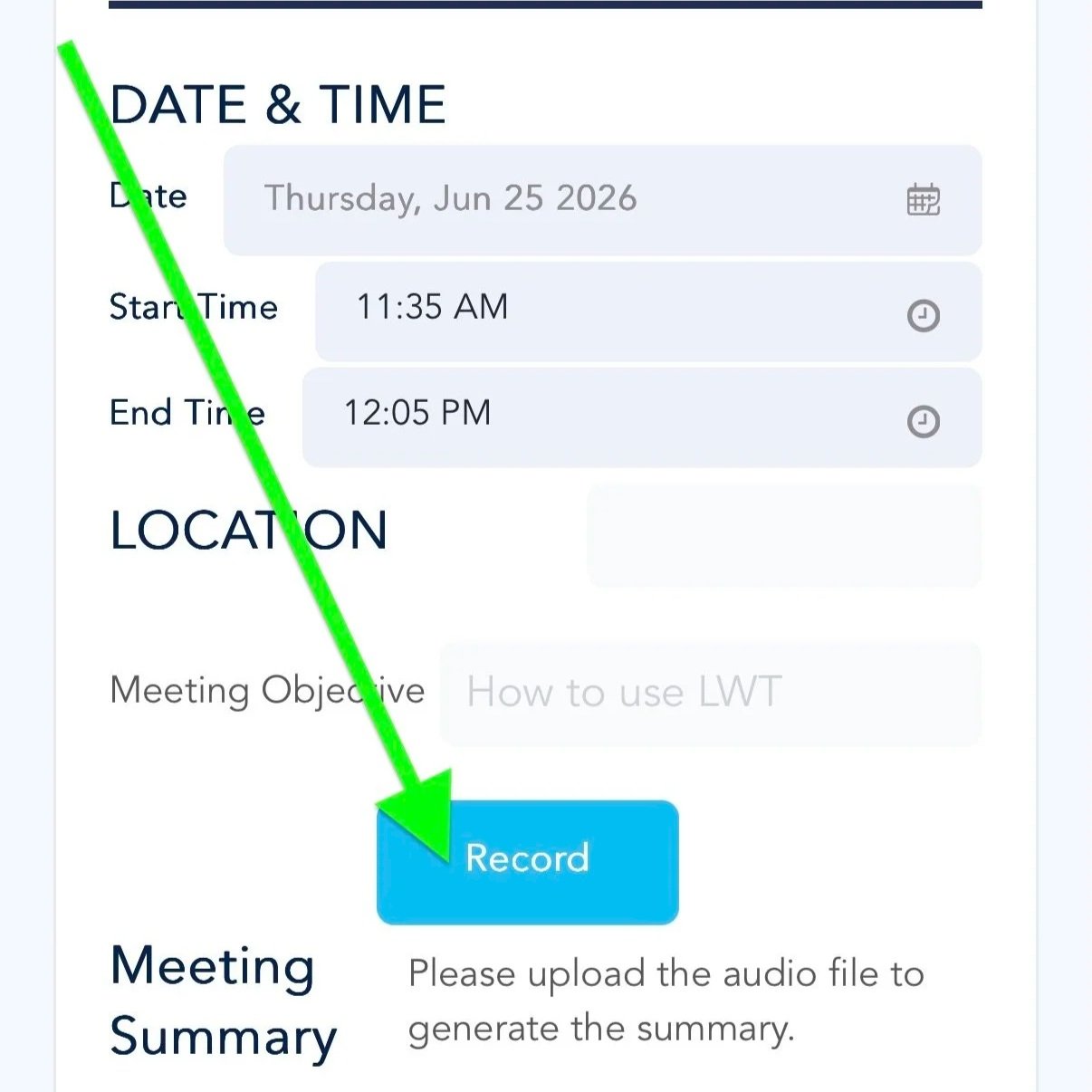
If you want to start recording now, click Record.
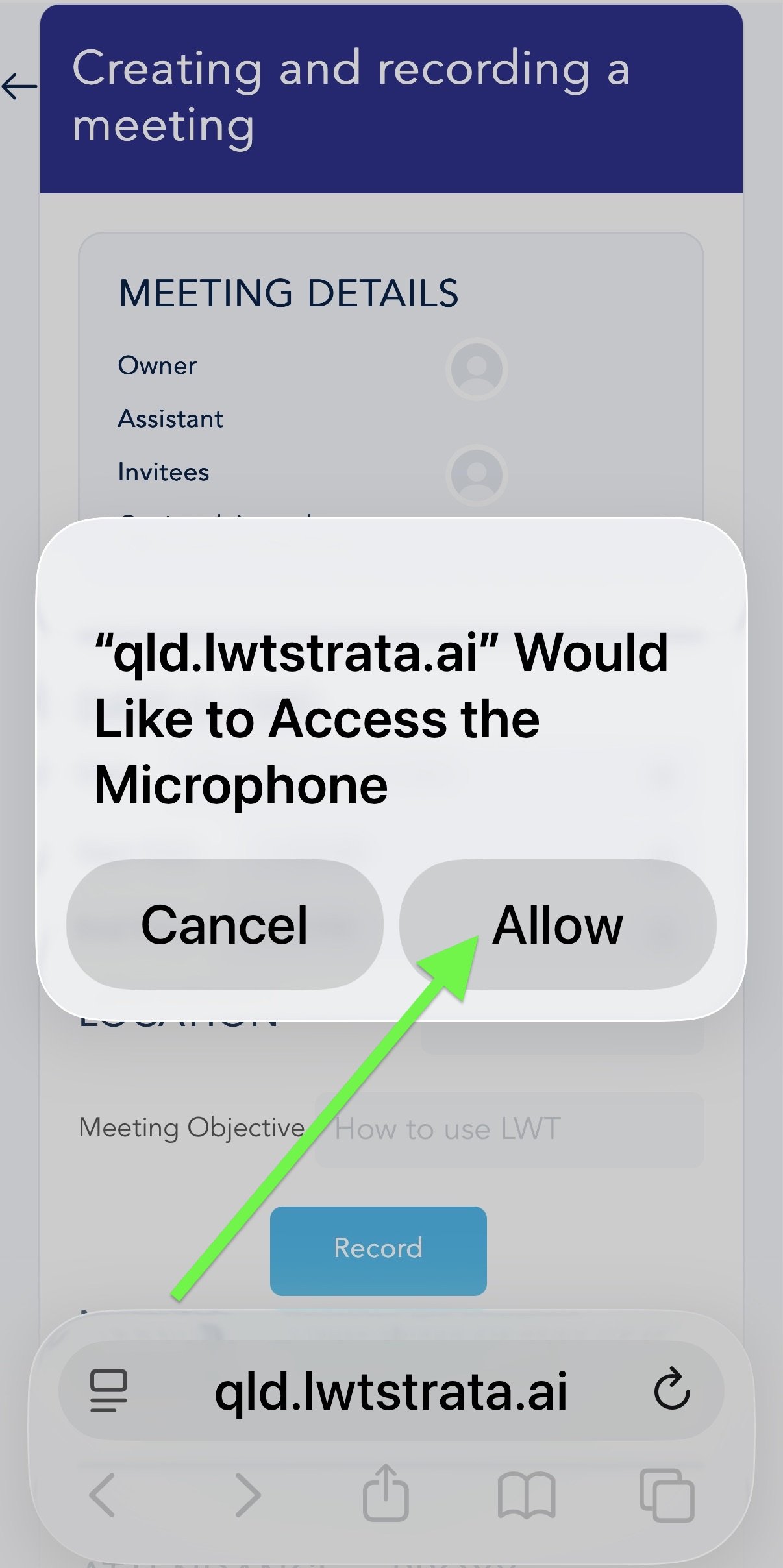
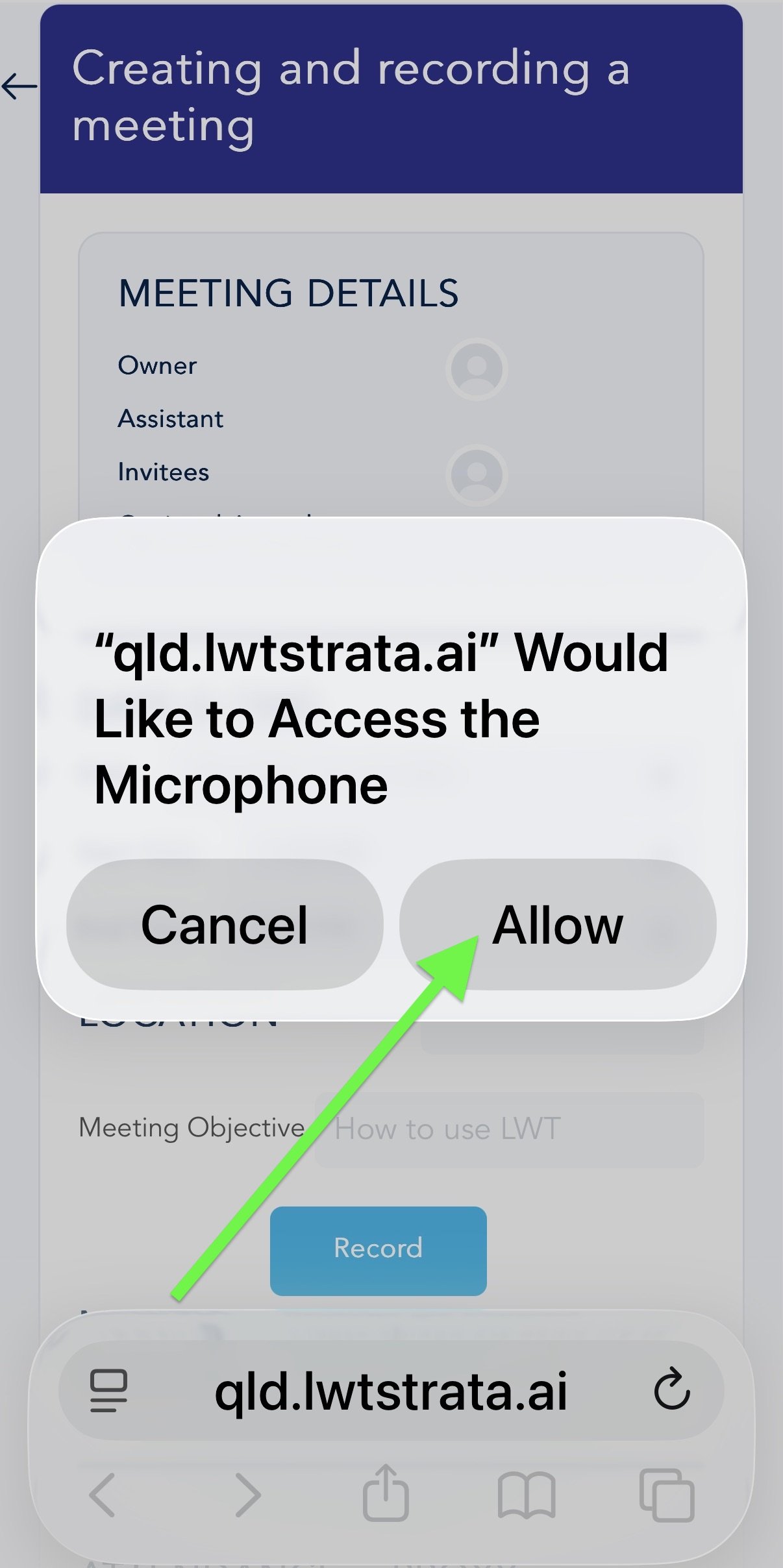
Click “Allow” to let LWT use your phone’s microphone to record the meeting.
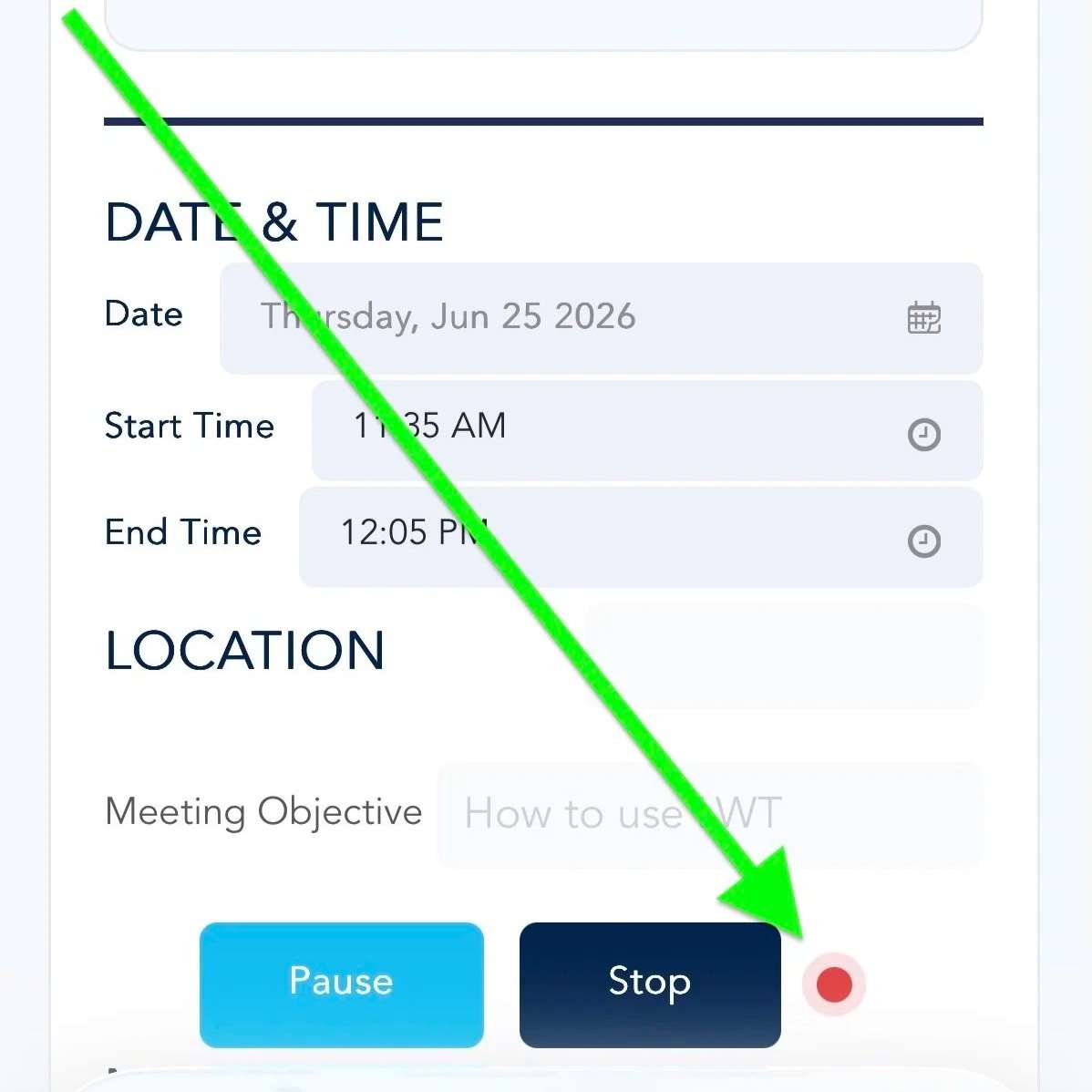
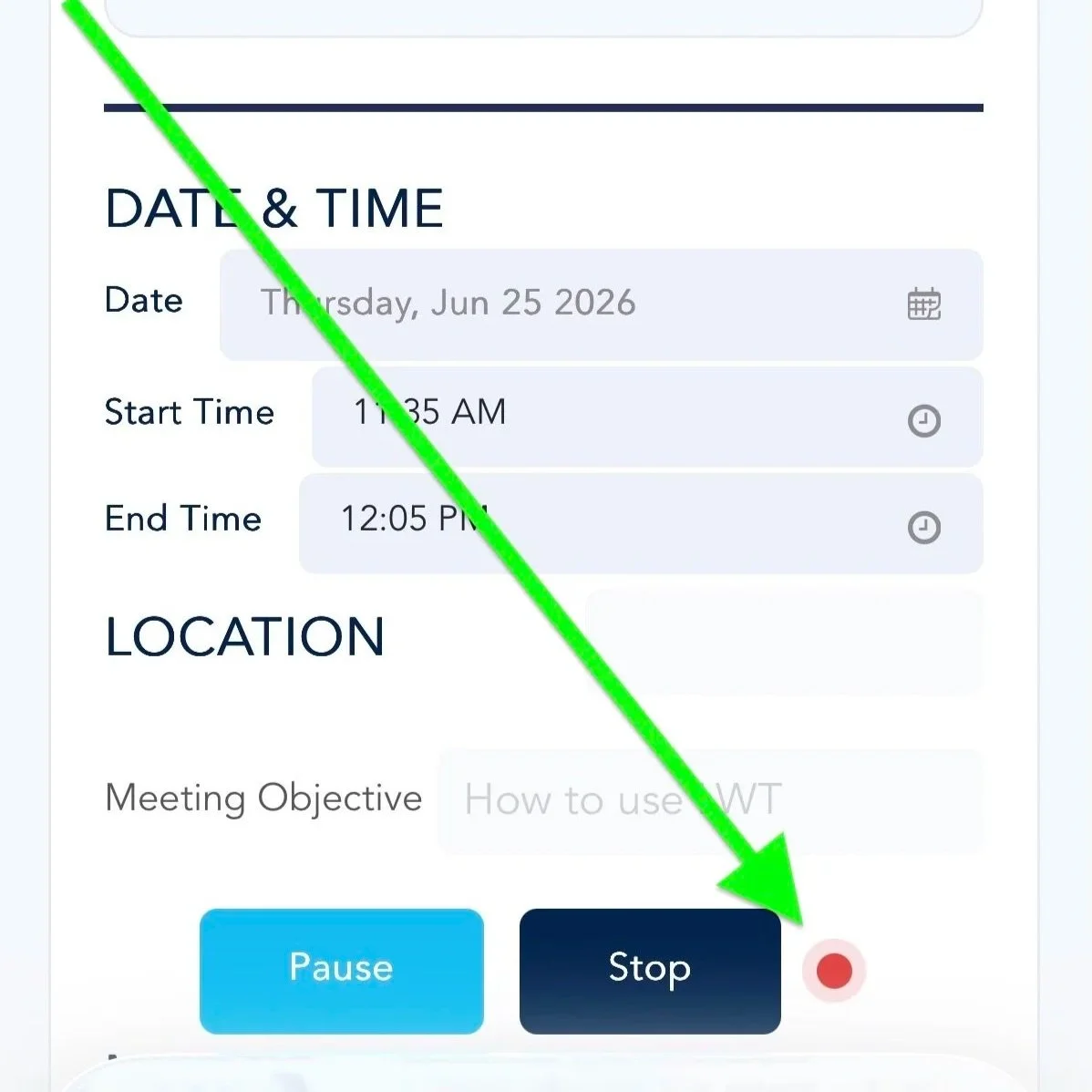
Click the Record button and check you now see "Pause" and "Stop" buttons and the red record light is pulsing
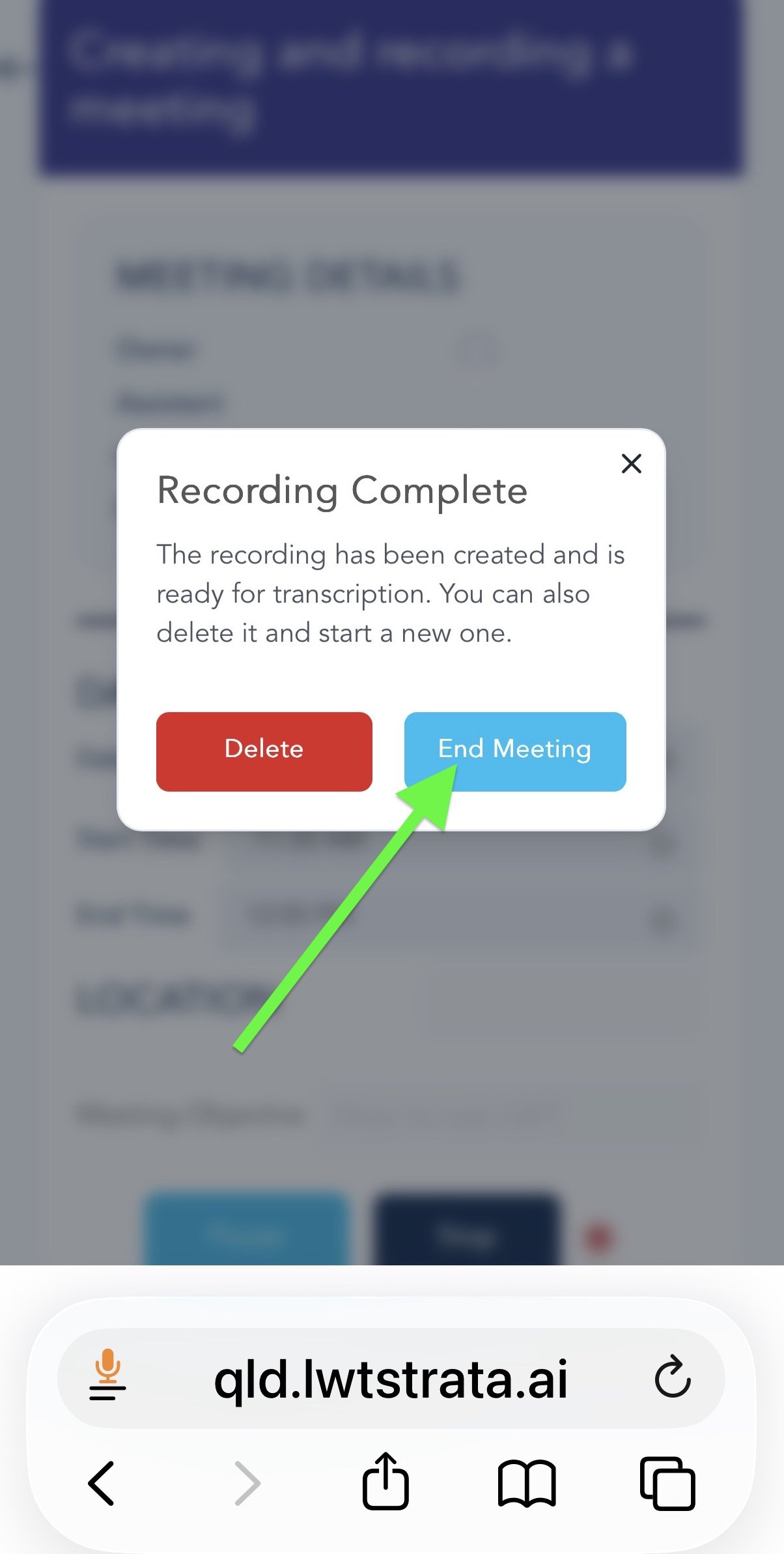
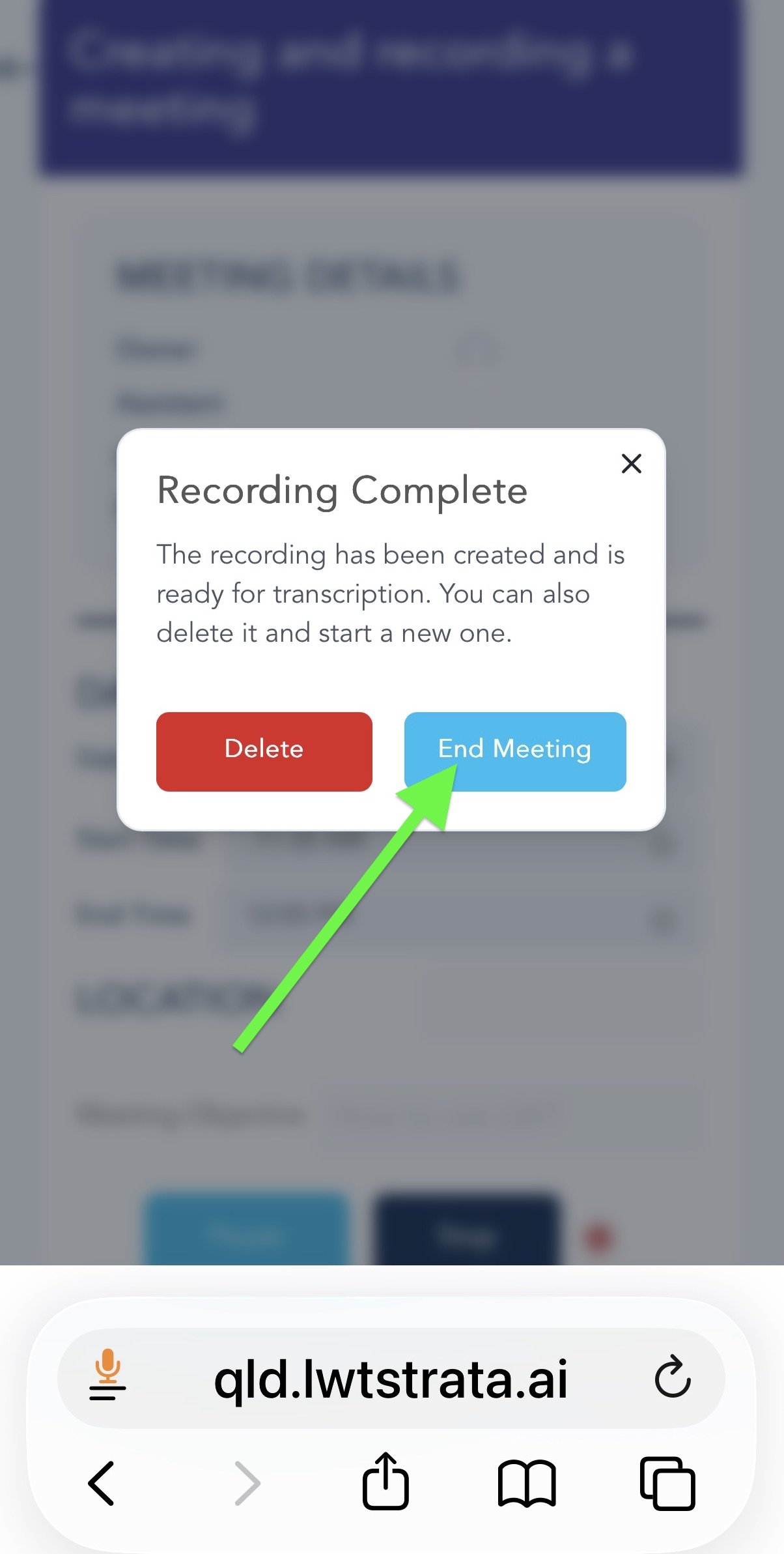
When the meeting has finished click "Stop" button. Then click "End Meeting".
Wait 30 seconds before closing the web page; the recording will automatically start being transcribed.
-
![]()
Login to LWT Mobile Recorder
-
![]()
Select Quick meeting
-
![]()
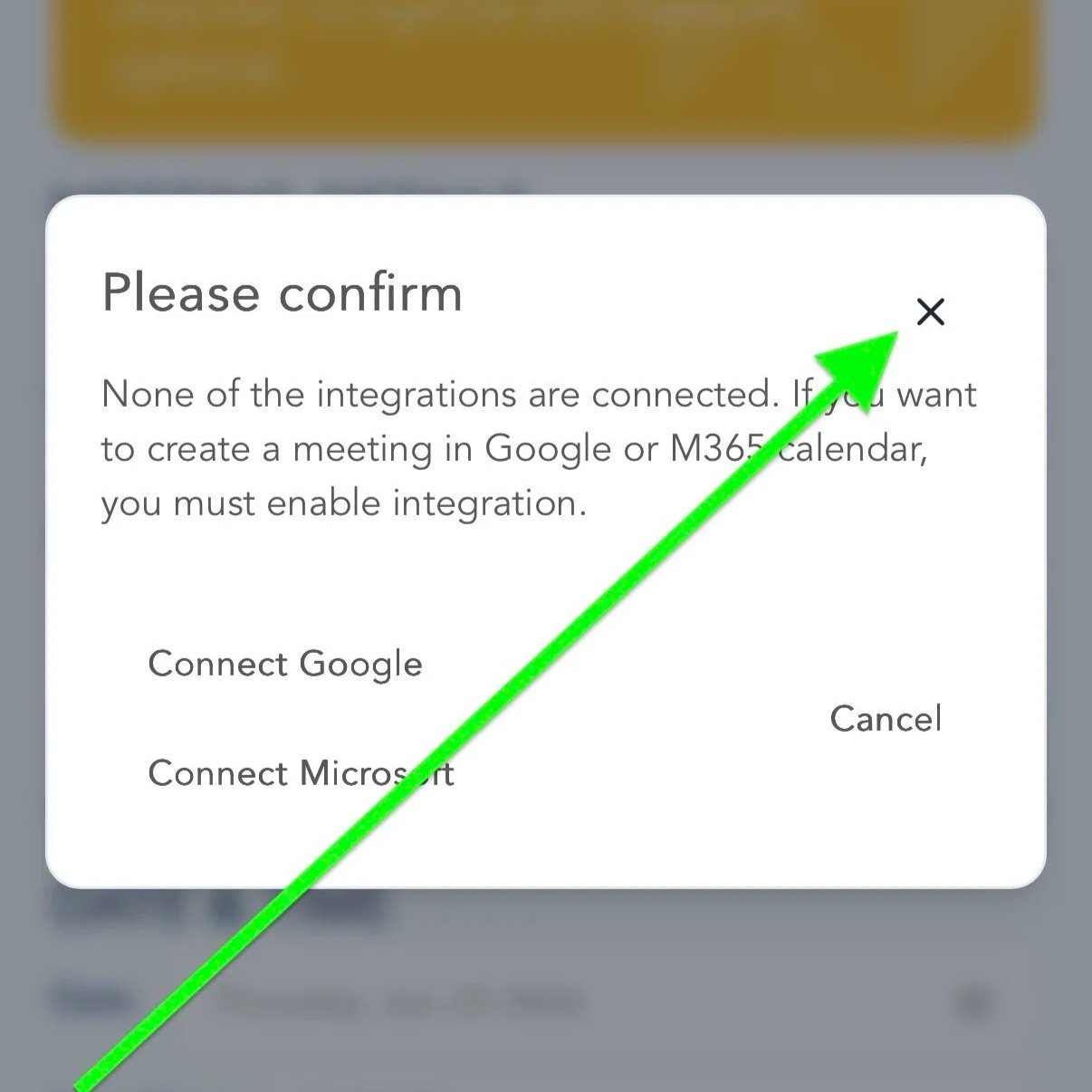
If you haven't yet synced LWT to your calendar close the window "x"
-
![]()
Enter the Title, Date, Times and Meeting Objective
-
![]()
Click OK to save details
-
![]()
Click Record
-
![]()
Click Allow to use your phone's microphone to record the meeting
-
![]()
Check the Recording light is pulsing
-
![]()
When the meeting is over select End Meeting. Only select Delete if you want to erase the recording and start a new one.
Recording a meeting using the meeting recorder
Open https://qld.lwtstrata.ai/ on your mobile phone and login with the YELLOW button
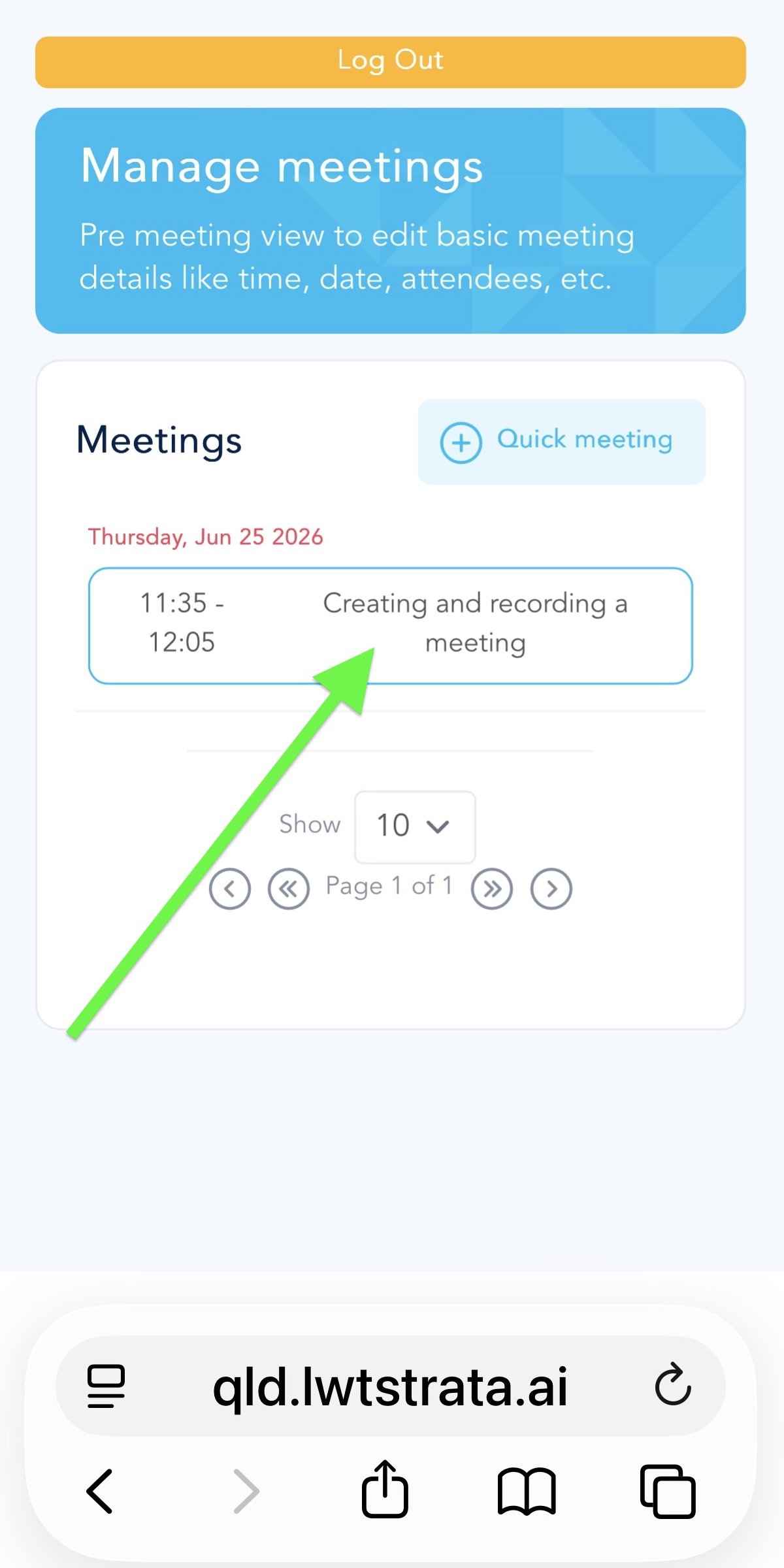
Click the meeting you want to record
Click “Allow” to let LWT use your phone’s microphone to record the meeting.
Click the Record button and check you now see "Pause" and "Stop" buttons and the red record light is pulsing
When the meeting has finished click "Stop" button. Then click "End Meeting".
Wait 30 seconds before closing the web page; the recording will automatically start being transcribed.
Note: If you select "Delete" the recording will be lost. This is only to be used if you want to stop a recording you have started, delete it, and start a new one (eg. If the meeting takes a while to get going).
-
![]()
Login to LWT Mobile Recorder
-
![]()
Select meeting to record
-
![]()
Click on "Record"
-
![]()
Click on Allow so microphone can record
-
![]()
Check recording light is pulsing
-
![]()
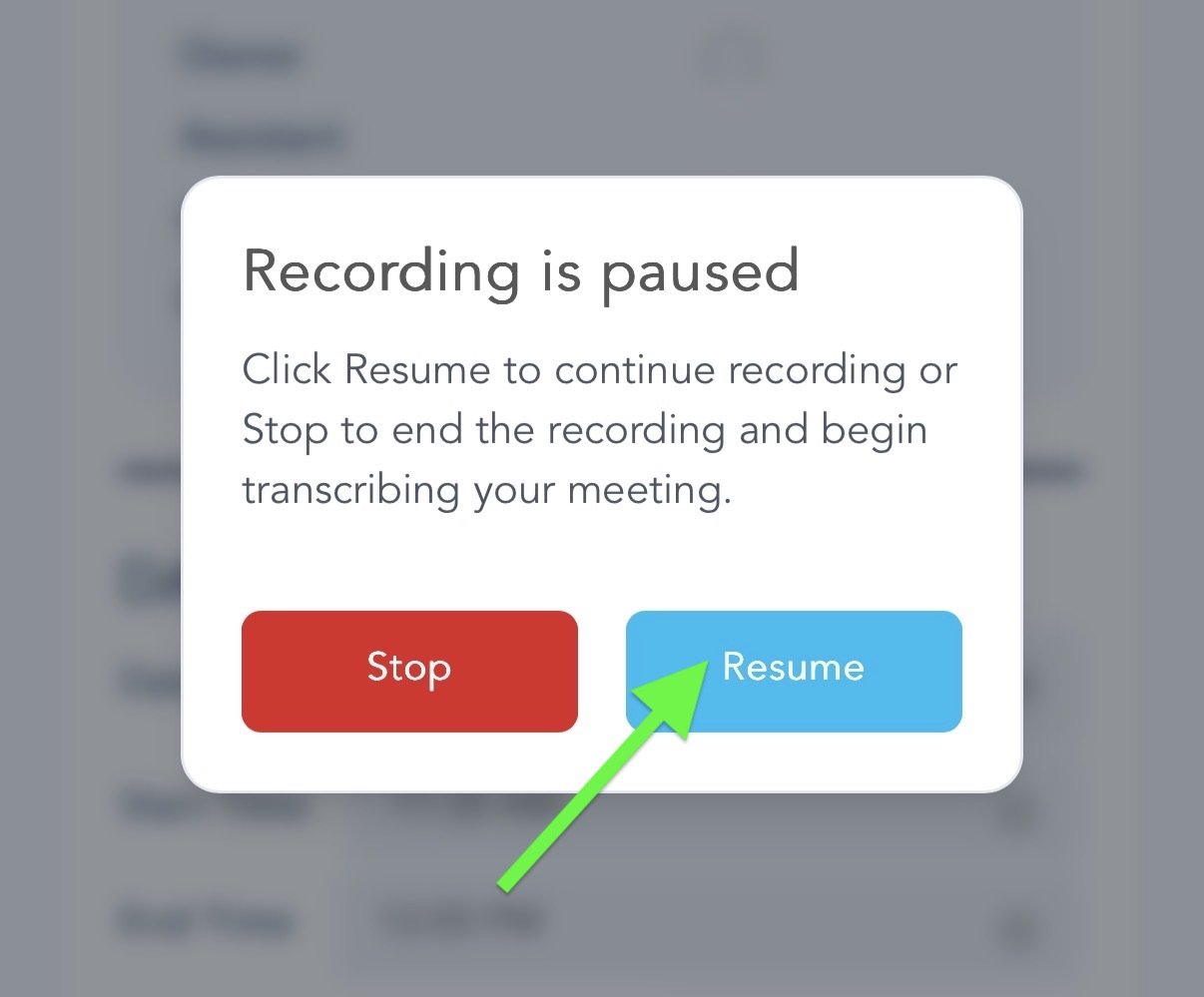
If you "Pause" make sure you "Resume"
-
![]()
When meeting is over select "End Meeting". Do not delete unless you want to completely restart the recording.
Finding your transcript afterward
Open https://qld.lwtstrata.ai/ on your desktop of laptop and login with the BLUE button.
Select Manage Meetings from the left hand side.
If the meeting occured this week the meeting will appear in the list of meetings.
If the meeting was older than this week select the date range the meeting occurred or search the name of the meeting at the top.
Click the three dots on the right hand side of the meeting and select "Meeting View" or "Meeting Minutes and Actions".
How do I submit questions or make suggestions to the LWT team?
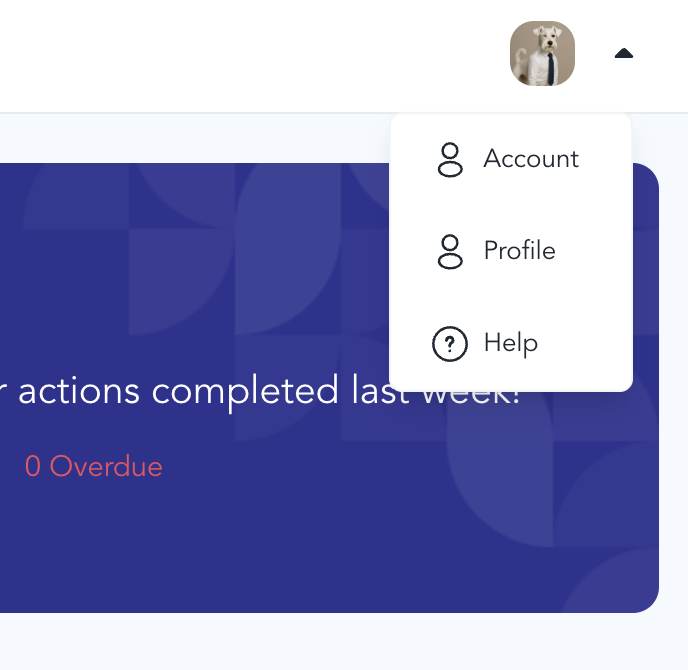
Create a ticket in the LWT web app.
Just select “Help” from the top right hand corner of your screen, below your profile pic. Then you can lodge a ticket and upload screenshots and screen recordings of the issue/idea you want to send to our team.